
Monitoring and Map
Page Overview
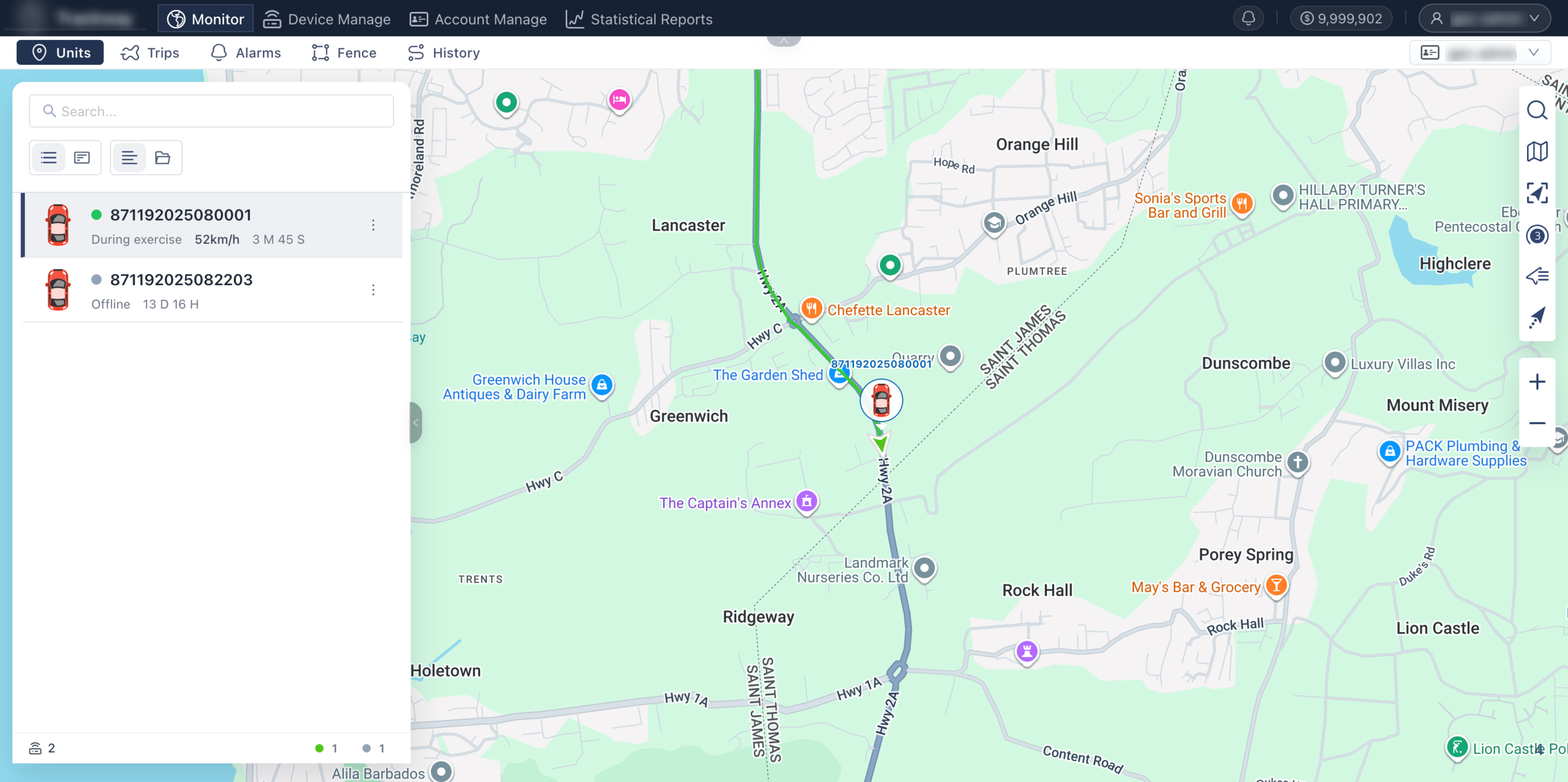
Section titled “Page Overview”Monitoring and Map is the platform’s core business page. It is mainly used to display real-time geographic locations and operating status of all devices under the account on a map. This page supports rich map interactions, multi-layer overlays (such as tracks, alarms, and geofences), and device tracking features to help dispatch teams achieve visualized and refined management of vehicles and devices.
Entry Path
Section titled “Entry Path”Navigation Bar > Monitoring
Page Features
Section titled “Page Features”Left Control Panel
Section titled “Left Control Panel”Provides operational and query entries for core business data on the left side of the map, with interactive overlay linkage to the right map. Feature details: The panel contains multiple tabs and supports quick switching among:
- Device List: View current status of all devices and vehicles (such as moving, stationary, offline).
- Trip: Query route segments and trip summaries of selected devices.
- Alarm: Receive and view safety alarms triggered by selected devices in real time.
- Fence: Overlay geofences on the map and quickly view/edit them.
- Track: Draw and replay specified historical trajectories.
Base Map Switching (Right Toolbar)
Section titled “Base Map Switching (Right Toolbar)”Provides multiple professional base maps to fit geographic information needs and usage preferences across countries/regions. Steps:
- Click the Switch Map icon in the right toolbar.
- Choose a map source from the dropdown menu. Current options include Google Street Map, Google Satellite Map, OpenStreetMap, etc.
Reset View (Right Toolbar)
Section titled “Reset View (Right Toolbar)”When map operations shift the viewport too far or prevent seeing all devices, use this feature for quick reset. Steps: Click Reset View in the right toolbar. The system automatically zooms and pans to the best view covering all devices, ensuring none are missed.
Location Clustering (Right Toolbar)
Section titled “Location Clustering (Right Toolbar)”Optimizes map display performance and readability for large-scale device counts. Steps and details: Turn on Location Clustering in the toolbar. Nearby devices are merged into a numbered circle marker (cluster). Zoom in to expand and view individual devices. (Recommendation: If your account manages many devices, keep this feature enabled to reduce icon overlap and significantly improve page loading and rendering performance.)
Marker Display Settings (Right Toolbar)
Section titled “Marker Display Settings (Right Toolbar)”Controls map information density to keep the interface clean. Steps: Use the corresponding switches to show or hide all device names and device icons on the map with one click.
Tracking Tail and Smooth Movement (Right Toolbar)
Section titled “Tracking Tail and Smooth Movement (Right Toolbar)”Enhances visual experience of dynamic monitoring and helps dispatchers judge movement direction and path intuitively. Steps and details: Enable Tracking Tail. Moving devices then use smooth animation (without jumpy movement), and a short trailing path line for recent minutes is displayed behind each icon.
- Map loading delay: When switching to image-heavy base maps (such as Google Satellite), brief loading delays may occur in poor network conditions, which is normal.
- Performance recommendation: For ultra-large fleets with more than thousands of devices, keep Location Clustering on and Tracking Tail off to maintain best browser smoothness.
Q: Why can’t I find my devices on the map after opening the page? A: You may have panned or zoomed while inspecting a specific device, placing others outside the current viewport. Click Reset View on the right toolbar and the map will automatically adjust to include all devices.