
Alarm Monitoring
Page Overview
Section titled “Page Overview”The Alarm Monitoring page is used to centrally track and handle safety and status anomalies triggered by a single device during operation (such as overspeed, geofence entry/exit, and offline events). This page supports multi-dimensional filtering, geographic location parsing, map visualization linkage, and manual review marking, helping fleet managers implement closed-loop exception management and improve overall operational safety.
Entry Paths
Section titled “Entry Paths”- Monitoring > Left Control Panel > Device List > Select a specific device > Click Alarm
- Monitoring > Left Control Panel > Alarm > Select the target device at the top
Page Features
Section titled “Page Features”Device Selection and Switching
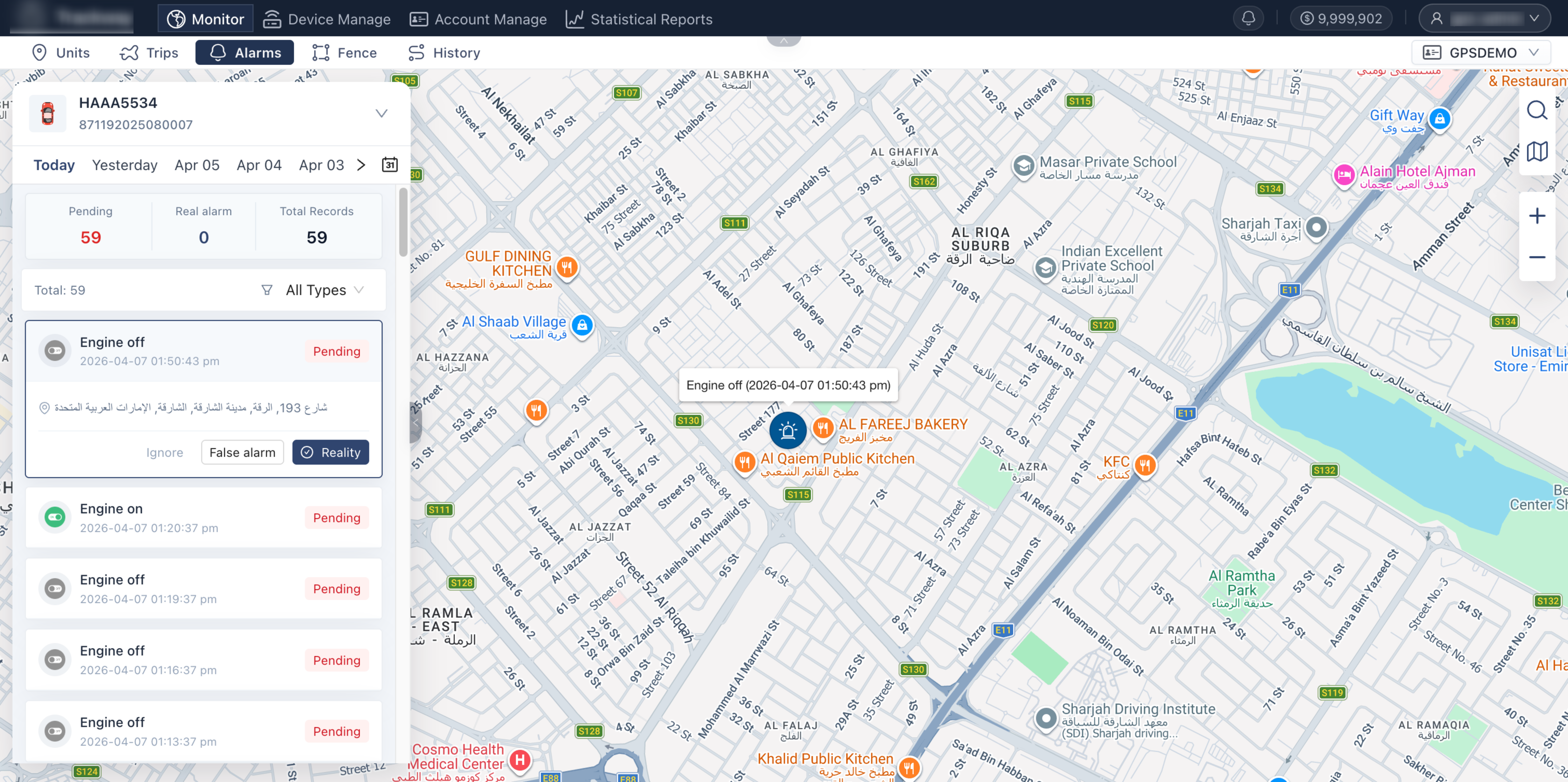
Section titled “Device Selection and Switching”Used to define the target device being analyzed. Steps: At the top of the panel, you can directly select or search for the device you want to view. If you navigate here from the Device List after selecting a device, the system automatically carries that device over and displays that device’s alarm data for the current day by default.
Date Selection and Filtering
Section titled “Date Selection and Filtering”Flexibly set the time range to analyze and quickly retrieve alarm data. Steps:
- Quick selection: Click the quick date buttons at the top of the panel to switch to recent ranges with one click.
- Custom date: Click the Calendar icon on the far right to define precise start and end dates.
Alarm Status and Type Filters
Section titled “Alarm Status and Type Filters”Helps operators remove noise from large data sets and focus on high-priority exceptions. Steps: Above the list, use dropdown menus to cross-filter by Alarm Type (for example, overspeed only) and by Processing Status (unprocessed, processed, etc.).
Alarm List and Map Linkage
Section titled “Alarm List and Map Linkage”Visually presents the geographic context of alarm events to help diagnose root causes. Steps: Click any alarm item (or card) in the list, and the map on the right will automatically pan and zoom to the exact coordinates of the trigger moment, then display a map popup with detailed data.
Alarm Handling Labels (Closed Loop)
Section titled “Alarm Handling Labels (Closed Loop)”Provides a manual review mechanism for verifying and classifying system-generated alarms, ensuring the accuracy of follow-up reports. Steps: In the action area of each alarm record, dispatchers can label status based on verification results:
- Real: A confirmed safety violation that actually occurred.
- False Alarm: Incorrect alarm caused by non-human factors such as hardware faults or GPS drift.
- Ignore: A known situation or low-priority alarm that requires no further investigation.
Address Resolution
Section titled “Address Resolution”Converts raw latitude/longitude coordinates into human-readable geographic locations. Steps: Click Address Resolution (or the location icon) in the alarm record. The system calls the underlying map service to translate coordinates into country, province/state, city, street, or landmark names.
- Closed-loop recommendation: It is recommended to establish a standard response workflow requiring on-duty dispatchers to verify and label high-risk alarms (such as SOS, abnormal engine shutdown, and severe overspeed) to prevent potential safety risks.
- Address resolution accuracy: The detail level depends on local map provider coverage (for example, Google Maps or OSM). Some remote areas, mining zones, or unnamed roads may only resolve to district or arterial-road level.
Q: Why does an alarm still appear in the list after I marked it as “False Alarm”? A: Status labeling classifies the event and does not delete underlying data. If you do not want to see these items, use the Processing Status filter at the top and show only Unprocessed or Real alarms.
Q: If I find abnormal stop duration in “Trips,” will it automatically generate an alarm? A: It depends on whether a cloud alarm rule for stop overtime is configured for that device. If you need automatic alerts, configure the Stop Overtime Threshold in alarm settings.